
Schedule & My Games
Schedule and My Games help you view upcoming games by week or list. My Games shows games across your groups, while Schedule shows games for one group.
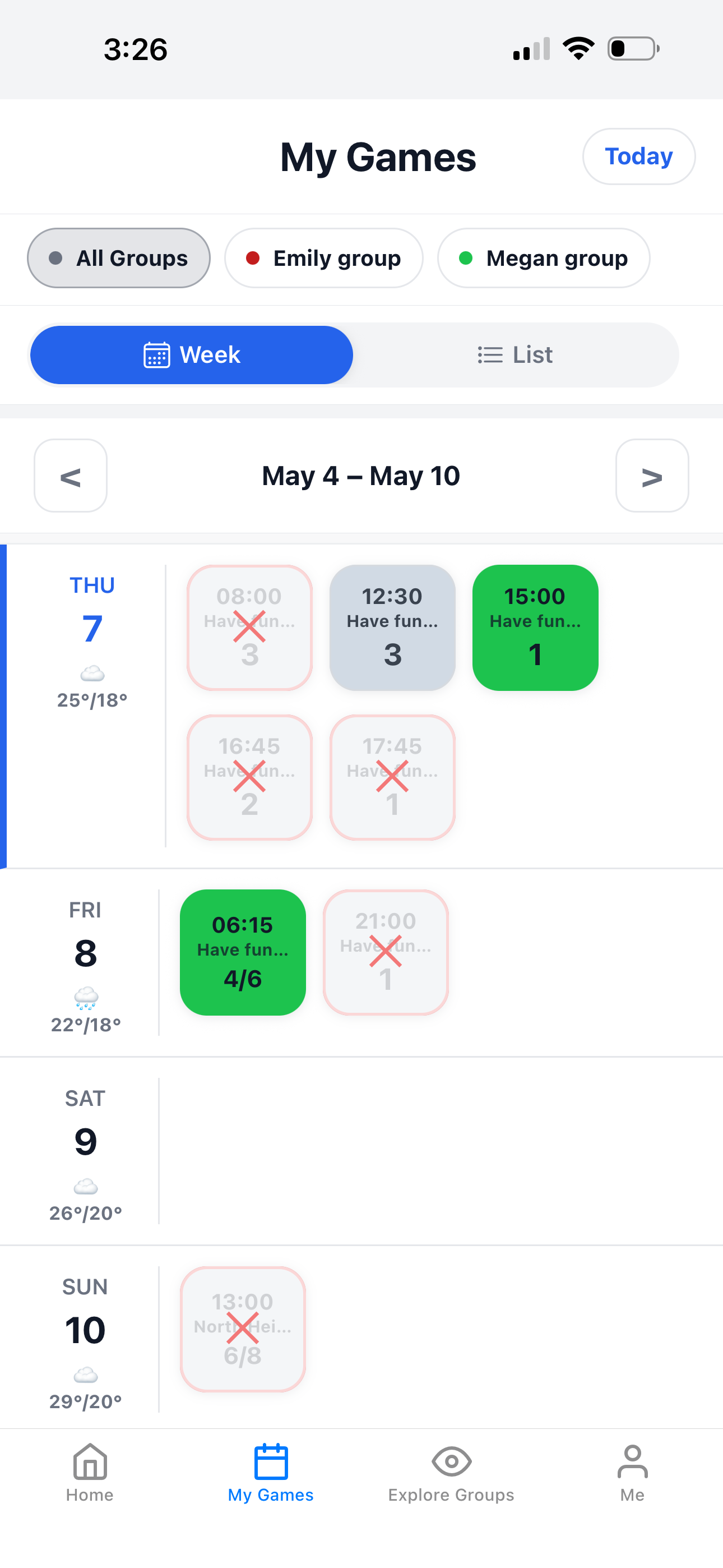
Use My Games to see all your games
My Games is useful when you belong to more than one group. You can filter by group, jump to today, and switch between week view and list view.
Group filter
Use All Groups or choose one group to show only that group’s games.
Week view
View games by day for the selected week.
List view
Switch to list view when you want a simple vertical list of games.
Understand My Games
The My Games tab shows games from your joined groups. This is the fastest way to check what games are coming up for you.
- ✅ All Groups shows games from every group you belong to.
- ✅ Group chips let you filter by one group.
- ✅ Today jumps back to the current date.
- ✅ Week/List changes how games are displayed.
- ✅ Previous/Next moves between weeks.
What the game colors mean
Game cards use different colors and opacity to help you quickly understand status.
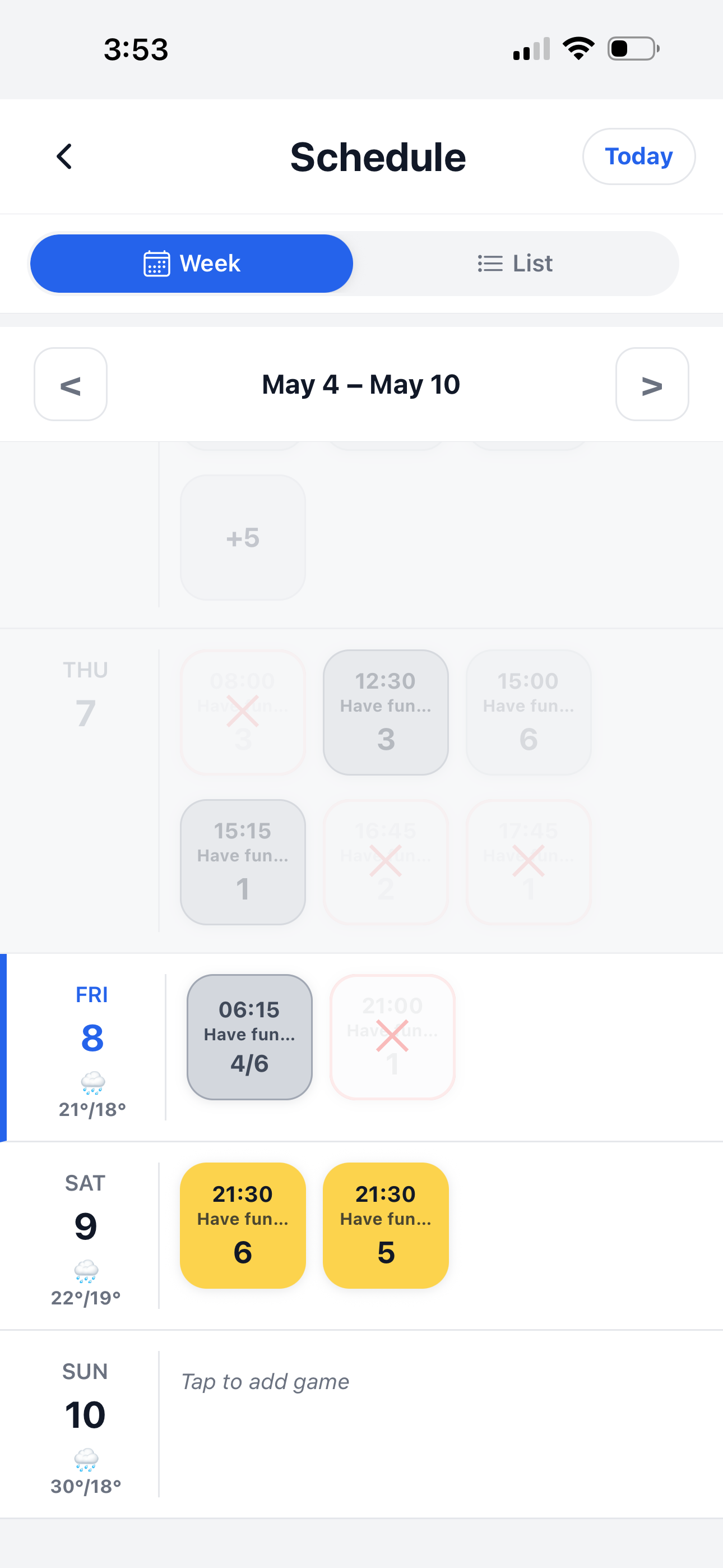
Use Schedule inside a group
Schedule is similar to My Games, but it focuses on one group. You can use it to view games, move between weeks, and add games if you have permission.
- 📅 Week view shows games grouped by day.
- 📋 List view shows games in a simple list.
- ➡️ Next week and previous week move through the calendar.
- 📍 Game cards show time, court name, and player count.
- ➕ Tap to add game lets allowed users create a new game for that day.
Tap a game to open details
Each game card can open the Game Detail page, where you can see the full game information, join or quit, view players, and check shared costs.
- 🏓 Game time appears at the top of each game card.
- 📍 Court name helps you know where the game is played.
- 👥 Player count shows how many players are registered.
- 🔎 Tap a game to open the game detail page.
Continue learning
Open another guide page to learn more about games and group management.