
Invite & Approve
Invite & Approve helps group owners and co-helpers bring players into a group. You can review pending join requests and invite players using an invite code, invite link, or QR code.
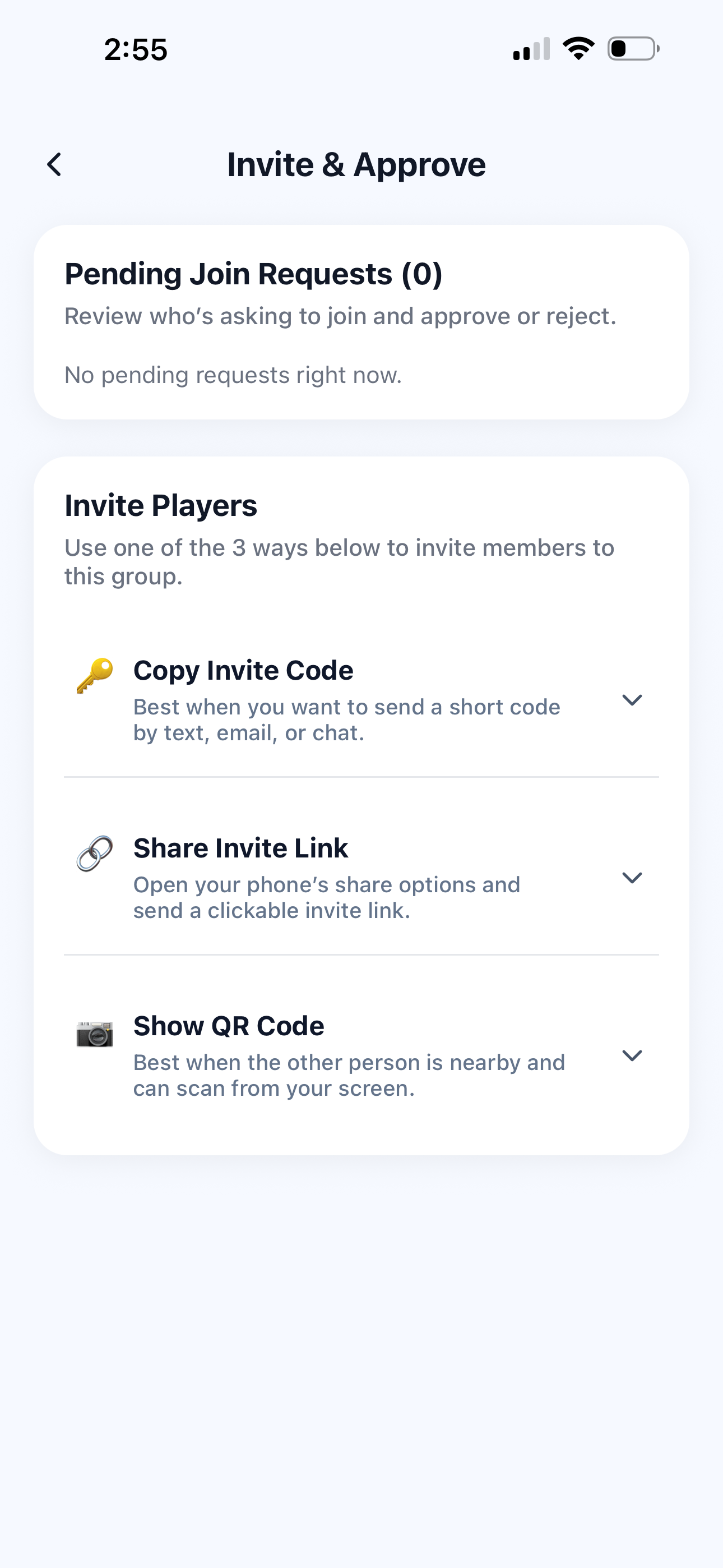
Three ways to invite players
Pick the invite method that works best for how you are communicating with your players.
Copy invite code
Best when you want to send a short code by text, email, chat, or in person.
Share invite link
Opens your phone’s share options and sends a clickable invite link.
Show QR code
Best when the other person is nearby and can scan directly from your screen.
Invite players to your group
The Invite Players section gives group owners and co-helpers multiple ways to invite members. You can expand each option to copy, share, or show the invite information.
- 🔑 Copy Invite Code is useful for a short manual code.
- 🔗 Share Invite Link sends a clickable link through your phone share menu.
- 📷 Show QR Code lets nearby players scan and join quickly.
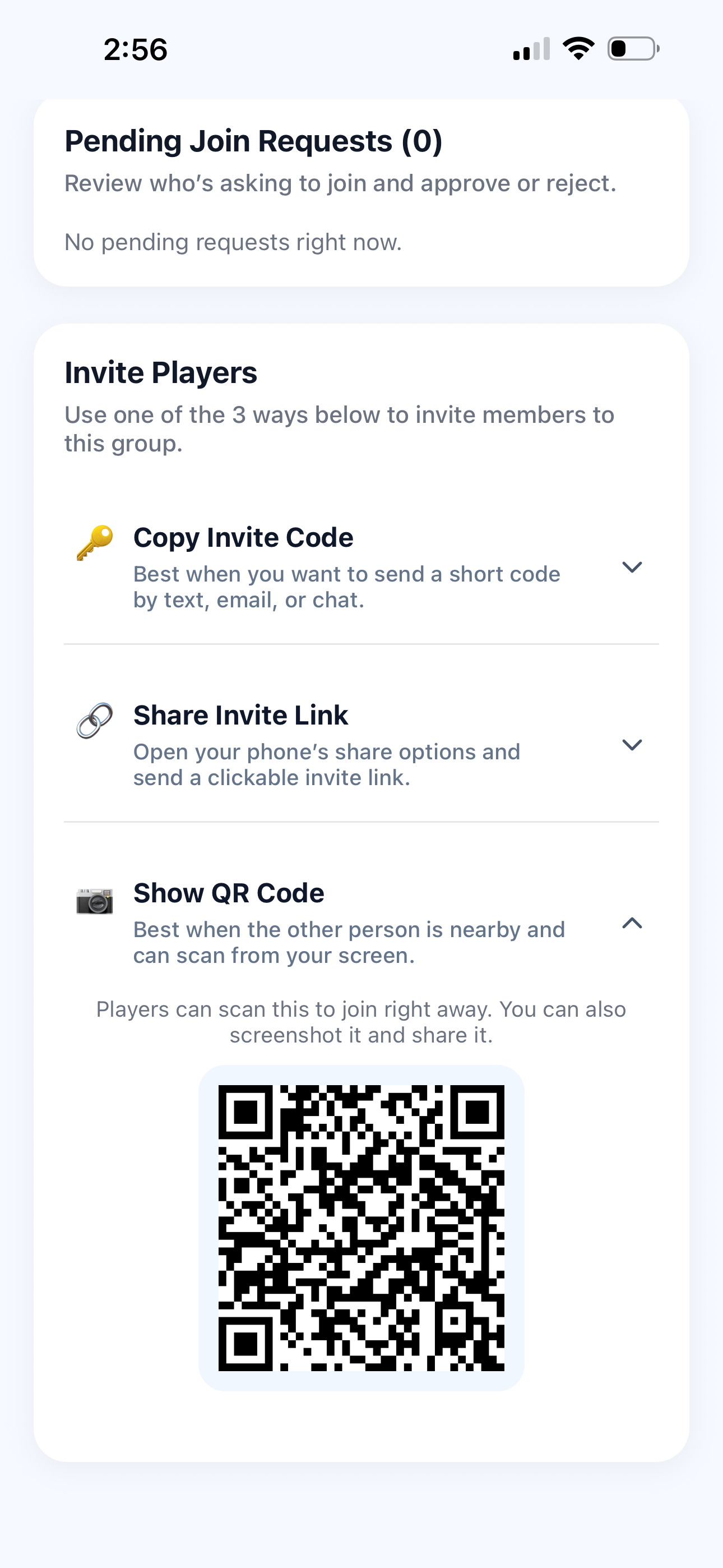
Use the QR code for fast joining
QR code is helpful when the player is standing nearby. They can scan your screen and open the group invite immediately.
- ✅ Open Show QR Code to display the group invite QR code.
- ✅ Let the player scan the QR code using their phone camera.
- ✅ Screenshot and share the QR code if you want to send it later.
Review pending join requests
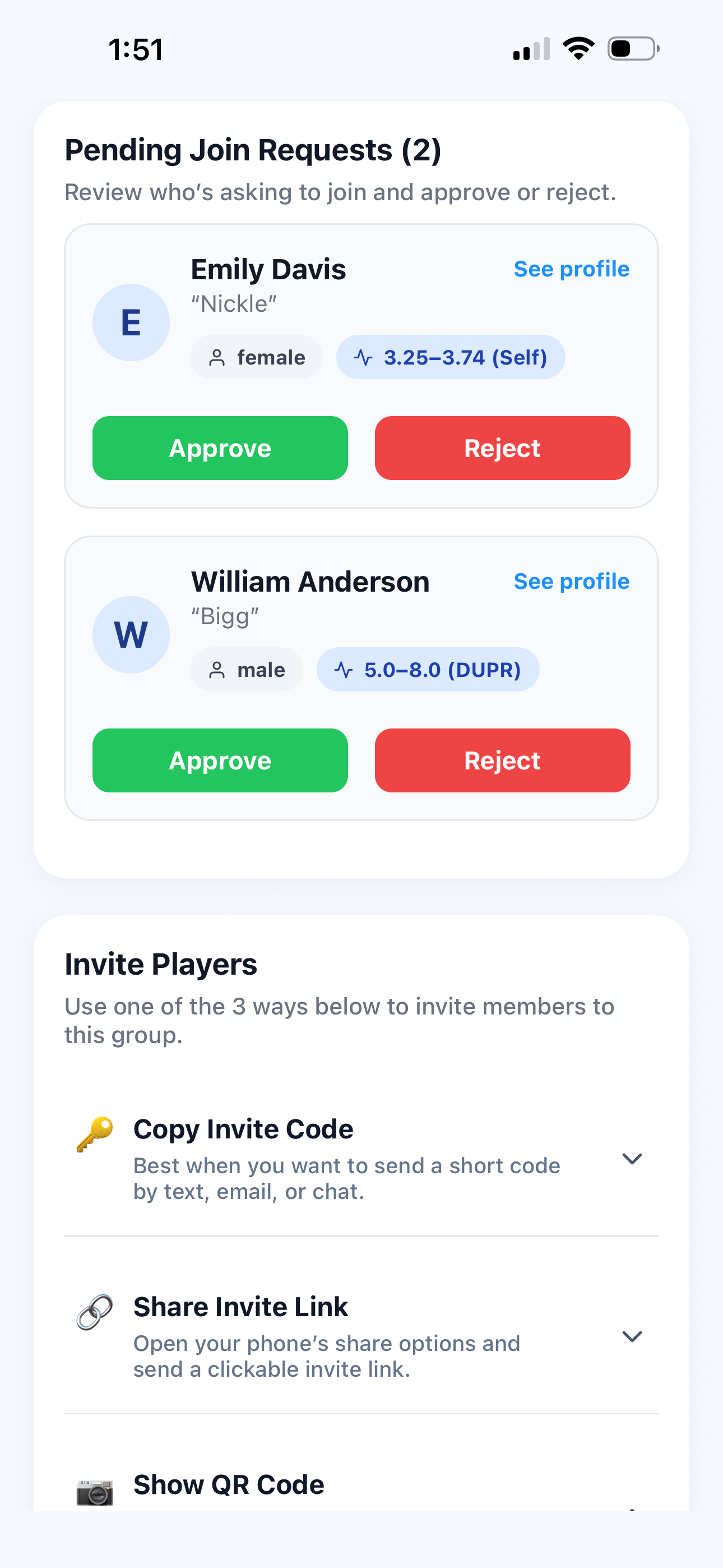
If players request to join a public group, owners and co-helpers can review each pending request before allowing the player into the group.
- 👀 Pending Join Requests shows who is asking to join.
- 👤 See profile lets you review the player before deciding.
- ✅ Approve adds the player to the group.
- ❌ Reject declines the request.
Continue learning
Open another guide page to learn more about managing your group.